
Guinevere
Build GPU-accelerated C# interfaces with immediate-mode layout, composable shapes and Excalibur controls across platforms.
C# interfaces, from drawing commands to application panels
Guinevere is the UI framework behind MASS4's Turian Studio and Gaya application shells. It brings layout, drawing and input together in C#, with Excalibur supplying the controls those applications need: menus, text fields, tabs, dialogs and dockable panels.
The core uses an immediate-mode workflow: your code describes the interface for the current frame. You can place a shape at explicit coordinates, ask the layout engine for a rectangle, or assemble a screen from ready-made controls. These approaches can share the same interface.
Guinevere is still evolving. The examples below cover the drawing and layout APIs, followed by the control library, styling system and planned work. They also identify the limitations that matter when choosing how to build a screen.
Packages: assemble the toolkit your application needs
The published packages target .NET 10. Start with the core and one rendering integration; add controls, themes, SVG icons, automation or generated forms as your application needs them.
dotnet add package MASS4.Guinevere
dotnet add package MASS4.Guinevere.Vulkan.SilkNET
Use these packages with the window and greeting example below. Source and further examples are available in the Guinevere repository.
Core: layout, drawing and input
MASS4.Guinevere supplies the immediate-mode engine, GPU-accelerated drawing through SkiaSharp, layout and input. Use it to build custom interfaces or as the foundation for the packages below.
Excalibur
application controls
dotnet add package MASS4.Guinevere.Excalibur
adds buttons, inputs, menus, trees, tabs, dialogs and docking. Compose application panels with existing controls and keep custom drawing available where a screen needs it. See the control examples.
Autoformers
objects into editors
dotnet add package MASS4.Autoformers.Excalibur
renders Autoformers models as labelled fields, collections and nested objects using Excalibur controls. It suits settings panels and inspectors, with scoped drawer registries for custom editors and inherited control tokens for styling.
Styling
reloadable themes
dotnet add package MASS4.Guinevere.Styling
adds runtime .pss stylesheets with selectors, nesting, inheritance and layered tokens. Share a theme across controls, override it for a subtree, and reload files while keeping the last valid sheet if an edit contains an error.
SVG
reusable vector icons
dotnet add package MASS4.Guinevere.Svg
decodes SVG through Svg.Skia into reusable vector pictures. Load an icon once, draw it at different sizes with gui.Icon, or use SVG sources in stylesheet icon themes.
Scripting
repeat an interaction
dotnet add package MASS4.Guinevere.Svg
injects pointer and keyboard input from code or JSON scripts into a real frame loop. Reproduce a drag, exercise a menu, save a frame image or check an expected result in headless tests and CI.
Choose a rendering integration
Connect Guinevere to the graphics API and windowing library used by your application:
| Package | Graphics API | Host library |
|---|---|---|
MASS4.Guinevere.OpenGL.SilkNET |
OpenGL | Silk.NET |
MASS4.Guinevere.Vulkan.SilkNET |
Vulkan | Silk.NET |
MASS4.Guinevere.OpenGL.OpenTK |
OpenGL | OpenTK |
MASS4.Guinevere.OpenGL.Raylib |
OpenGL | Raylib-cs |
The integration supplies the platform services; application code uses Guinevere's layout, drawing and input APIs.
How the framework fits together
Skia and platform integrations
Skia handles shapes and font processing. Platform integrations supply input and rendering through OpenGL or Vulkan, using Raylib, OpenTK or SilkNET.
Start with C#
The core API needs no markup or separate UI build step. Describe the interface in C#; add runtime stylesheets when shared styling becomes useful.
Immediate-mode foundation
An optional retained-mode layer is in development. It resolves to immediate-mode calls so both workflows can participate in the same UI.
An evolving API
Guinevere is young. Application work feeds back into its design, and APIs may change as implementations are refined or replaced.
Inspectable implementation
The core keeps its abstractions small, making it practical to follow how a layout property becomes data and how that data reaches the renderer.
Layout benchmarks
Representative layout trees run at roughly 48–49 nanoseconds per node with zero steady-state allocations. The layout engine write-up explains the fixtures and results.
Layout when you need it
Use nested layouts, constraints and blended sizes for structured screens. Explicit geometry remains available for drawing that needs its own coordinate calculations.
Stable from the first frame
Idiomatic layout code resolves in a single frame, without extra frames to settle element positions or sizes.
Simulated input
Input enters through the platform integration. Tests can supply events and control the systems directly to reproduce a particular interaction.
Code access throughout
Layout, drawing, input and styling are accessible through code. Controls can be composed with the same primitives used to build custom widgets.
Bring a rendering host
Guinevere produces rendering commands for a host to execute. Porting it means supplying a platform layer that connects input and rendering to the target environment.
Drawing examples
These C# examples use the SilkNET, OpenTK and Raylib-cs integrations. They illustrate the current API; Guinevere remains under active development, and the examples cover only part of the framework.
A window and a greeting
Create a Gui, give it a window, and draw inside the frame callback. This example fills the screen and
adds text.
using Guinevere.Vulkan.SilkNET;
public class Program
{
    public static void Main()
    {
        var gui = new Gui();
        var win = new GuiWindow(gui);

        win.RunGui(() =>
        {
            gui.DrawRect(gui.ScreenRect, Color.Blue);
            gui.DrawText("Hello, world!");
        });
    }
}
using Guinevere.OpenGL.Raylib;
public class Program
{
    public static void Main()
    {
        var gui = new Gui();
        var win = new GuiWindow(gui);
        win.RunGui(() =>
        {
            gui.DrawRect(gui.ScreenRect, Color.Gray);
            gui.DrawWindowTitlebar();
            using (gui.Node().Expand().Gap(40).Margin(40).AlignContent(0.5f).Enter())
            {
                gui.DrawBackgroundRect(Color.Black, radius: 20);
                float time = gui.Time.Elapsed * 2;
                Vector2 center = gui.Node(200, 200).Rect.Center;
                Vector2 p1 = center + new Vector2(-100 * Cos(time), -100 + Sin(time) * 10);
                Vector2 p2 = center + new Vector2(+100 * Cos(time), -100 - Sin(time) * 10);
                Vector2 p3 = center + new Vector2(0, 100);
                gui.DrawTriangle(p1, p2, p3, Color.Red, Color.Green, Color.Blue);
                gui.DrawText("Hello, Triangle!", color: Color.White, fontSize: 50);
            }
        });
    }
}
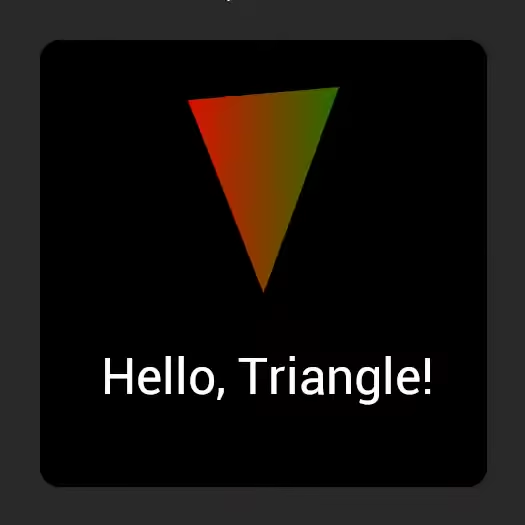
An animated triangle inside a layout
The next example combines a layout node with explicit vertex positions. The node supplies a center point; the drawing code calculates the triangle around it and updates it using elapsed time.
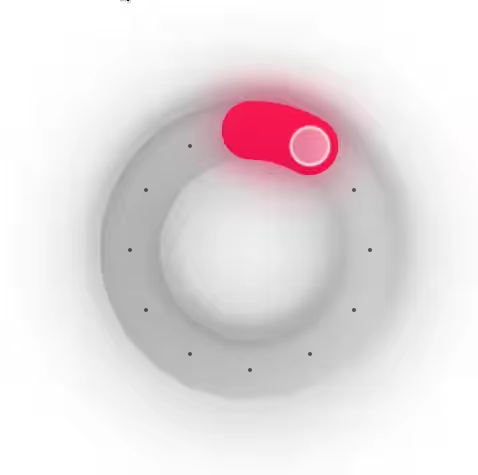
A circular month selector
This widget recreates the circular month selector from Airbnb's February 2024 date picker. It demonstrates how geometry, pointer interaction and layered effects work together within a single layout node.
The selected month determines the arc length and handle position. Holding the handle converts the pointer's angle into a month value; gradients and shadows provide the visual treatment. The example handles pointer interaction. Keyboard navigation would need additional input handling, and the implementation may change as the input controls API develops.
private void DrawAirBnBMonthSlider(ref int month)
    {
        float t = month / 12.0f;

        float innerRadius = 90;
        float outerRadius = 150;

        using (_gui.Node(500, 500).AlignContent(0.5f).Gap(10).Enter())
        {
            _gui.DrawText(month.ToString(), 100f);
            _gui.DrawText(month == 1 ? "month" : "months", 20f);

            float halfThickness = (outerRadius - innerRadius) * 0.5f;
            Vector2 handlePos = _gui.CurrentNode.Rect.Center +
                                Angle.Turns(t - 0.25f).GetDirectionVector() * (innerRadius + halfThickness);
            Vector2 center = _gui.CurrentNode.Rect.Center;

            Shape arcLaneShape = Shape.Circle(outerRadius) - Shape.Circle(innerRadius);
            Shape arcShape = Shape.Arc(innerRadius + halfThickness, halfThickness, Angle.Turns(-0.25f), Angle.Turns(t))
                .Expand(-3);
            Shape handleShape = Shape.Circle(halfThickness - 10);

            InteractableElement handleElement = _gui.GetInteractable(handlePos, handleShape);

            if (handleElement.OnHold())
            {
                Vector2 delta = center - _gui.Input.MousePosition;
                t = 1 - 0.5f + MathF.Atan2(delta.X, -delta.Y) / MathF.Tau;
                t = Math.Clamp(t, 1 / 12f, 1);
                month = (int)Math.Round(t * 12);
            }
            else
            {
                t = ImMath.Lerp(t, month / 12.0f, _gui.Time.DeltaTime * 10);
            }

            _gui.DrawShape(center, arcLaneShape)
                .LinearGradientColor(0x00000022, 0x00000005, scale: 0.8f)
                .InnerShadow(0x00000066, new Vector2(0, 20), 50, -30)
                .OuterShadow(0x00000066, new Vector2(0, -5), 10, 5);

            for (int i = 0; i < 12; i++)
                _gui.DrawCircle(center + Angle.Turns(i / 12.0f).GetDirectionVector() * (innerRadius + halfThickness), 2,
                    0x00000099);

            _gui.DrawShape(center, arcShape)
                .RadialGradientColor(0xBA0057FF, 0xF91E50FF, innerRadius, outerRadius)
                .RadialGradientColor(0xDC4682FF, 0xCF2D6C00, innerRadius - halfThickness,
                    innerRadius + halfThickness, offsetY: halfThickness)
                .InnerShadow(0xFA144BFF, new Vector2(0, 5), 25, -8)
                .OuterShadow(0xEA1C5Acc, 90)
                .OuterShadow(0x000000822, new Vector2(0, 3), 10, 3)
                .OuterShadow(0x000000811, 5, 0)
                .OuterShadow(0x22222244, 2);

            _gui.DrawShape(handlePos,
                    handleShape.Expand(handleElement.On(Interactions.Hover | Interactions.Hold) ? 4 : 0))
                .SolidColor(0x00000088)
                .LinearGradientColor(0xD4D1D5FF, 0xFFFCFFFF)
                .InnerShadow(0xffffffff, 1, 2)
                .OuterShadow(0x00000066, 4);

            _gui.SetClipArea(_gui.CurrentNode, arcLaneShape);
        }
    }
Layout: rectangles your drawing code can use
Layout computes geometry independently of drawing and input. Use its rectangles to position content, mix in manual calculations, or draw without creating layout nodes at all.
Measured layout cost
The benchmark suite covers fixed, wrapped, constrained-expand, percentage, ratio and fit-content trees. These fixtures resolve with zero steady-state allocations. Deep chains of more than a thousand nodes scale linearly at roughly 48–49 nanoseconds per node, allowing thousands of nodes to resolve within a fraction of a millisecond on the benchmark machine.
These are fixture-specific measurements, not a timing guarantee for every application. Read Reworking Guinevere's Layout Engine for the test conditions and the changes that removed allocations.
Share and modify nodes within a frame
A layout node can be passed to another function and modified during the current frame. That function can add children, change properties, move the node or remove it. This supports modular UI construction while keeping the layout immediate mode.
Combine sizing rules
Width, height, minimums and maximums use the same size primitives. Sizes can follow content, available space, another axis, a percentage or a fixed pixel value. Contributions can also be combined and interpolated.
UnitValue.FitContent(percentageOfContent) // 1 by default
UnitValue.Expand(weight) // 1 by default
UnitValue.Ratio(ratio) // Other axis multiplied by ratio
UnitValue.Percentage(percentage) // 1 is 100%
UnitValue.Pixels(pixels)
UnitValue.FitLargest(percentageOfLargestChild) // Follows the largest child
// Contributions compose directly, and interpolate without a discrete mode switch
UnitValue.Percentage(0.7f) + UnitValue.FitContent(0.1f)
Refer to another node's geometry
Position and size can depend on another node. Reparenting lets you change where a node belongs in the tree.
gui.Node()
    .PositionRelativeTo(otherNode,
        x: 0.5f,
        y: Offset.PercentageOfSelf(0.5f))
    .SizeRelativeTo(otherNode);

...or even completely move a node to another node.
gui.Node().SetNewParent(otherNode);
Blend between layout configurations
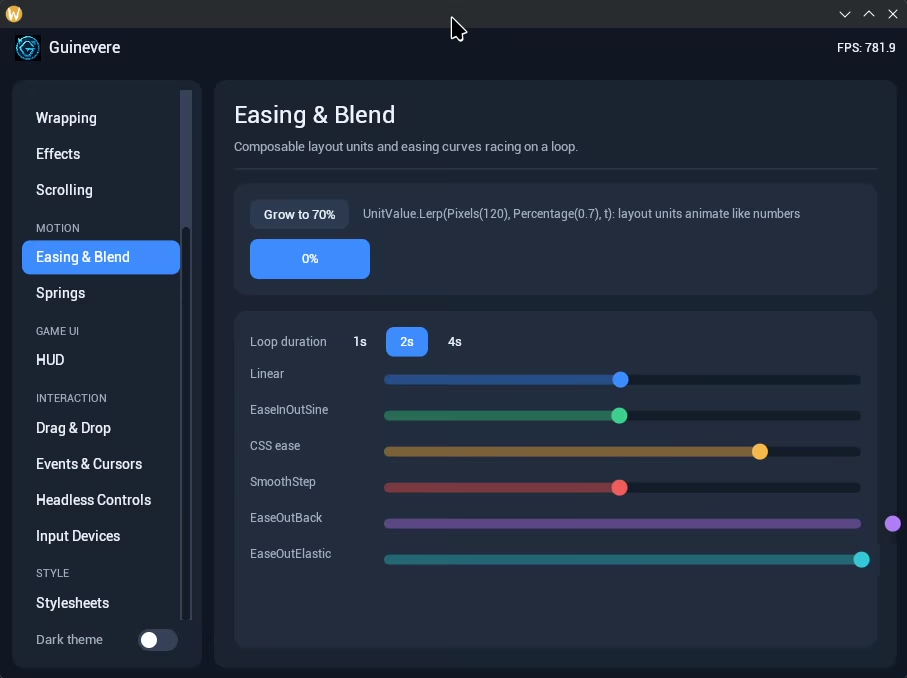
Interpolating size values lets a transition follow changing layout rules, including a transition from content-based sizing to expansion within constraints.
gui.Node().Width(
    UnitValue.Lerp(UnitValue.FitContent(), UnitValue.Expand(), t)
);
Alignment is a numeric value
Alignment uses a float: 0 starts at the left or top, 0.5 centers, and 1 reaches the right or bottom.
Values outside that range are allowed, and the value can change over time.
float align = cos(time) * 0.5f + 0.5f;
gui.Node().AlignContent(x: align, y: align);
Inspect the layout data
LayoutNode is a struct pointing to layout data. Its rectangle properties expose the bounds relevant to
drawing, spacing and content.
LayoutNode node = gui.Node();
DrawRect(node.Rect, col);        // With padding
DrawRect(node.OuterRect, col);   // With padding and margin
DrawRect(node.InnerRect, col);   // Without padding and margin
DrawRect(node.ContentRect, col); // Bounds of the content
DrawRect(node.Parent.Rect, col); // Parent rect
Child nodes are available for traversal:
int i = 0;
LayoutNode someNode = gui.CurrentNode;
foreach (LayoutNode node in someNode.ChildNodes)
{
    Color color = i % 2 == 0 ? Color.Red : Color.Green;
    gui.DrawRect(node.Rect, color);
}
Fluent calls such as .MaxWidth(), .AlignContent() and .Gap() update the underlying data through small,
inlinable methods. Setting a 100-pixel maximum width corresponds to these property changes:
// Specify that we're using pixels
node.Properties.MaxWidth.Type = SizeMode.Pixels;
// Give the value in pixels
node.Properties.MaxWidth.Value = 100;
// Register that the node now has a max value
node.Properties.PropertyFlags |= PropertyFlags.MaxWidth;
Choose how to construct a subtree
Keep a node in a variable when several functions need it, chain fluent calls for a short declaration, or enter a scope while adding children.
var node = gui.Node();
node.Position(100, 100);
node.Size(200, 200);
SomeOtherFunction(node);
A using block closes the node scope automatically:
using (gui.Node().Size(200, 200).Enter())
{
    // Do stuff
}
The explicit scope form is equivalent:
LayoutNodeScope scope = gui.Node().Size(200, 200).Enter();
// Do stuff
scope.Exit();
Use node scopes with drawing and input
Node helpers connect layout geometry to other Guinevere systems. Entering a node also scopes drawing state, so changes made inside it are restored on exit:
gui.SetZIndex(1);
gui.SetFontSize(13);
using (gui.Node().Enter())
{
   gui.SetZIndex(30);
   gui.SetFontSize(40);
}
// Font size is back to 13, and z-index is back to 1.
Interaction helpers use the node's rectangle as the target area:
LayoutNode node = gui.CurrentNode;
if (node.OnHold(out HoldArgs args))
   node.SelfOffset(args.DeltaPosition);
if (node.OnHover())
   DrawRect(node.Rect, Color.Red);
// Same as:
if (gui.GetInteractable(node.Rect).OnHover())
   DrawRect(node.Rect, Color.Red);
Other layout features include tables, wrapping, pivots, margins, padding, self and content offsets, and flow direction. Examples for these features are planned.
Shapes: geometry for drawing, hit testing and clipping
Guinevere represents shapes with composed signed distance fields (SDFs). Their analytical representation keeps shape data compact and allows drawing at different resolutions.
Define geometry separately from position
A shape definition can be reused at multiple positions. Here, the circle's radius belongs to the shape, while its screen position is supplied separately.
Vector2 position = gui.ScreenRect.Center;
Shape shape = Shape.Circle(300);
Use the shape as an interaction area
Hit testing can follow the shape instead of a rectangular boundary. The resulting interactable exposes hover and hold information.
var interactable = gui.GetInteractable(position, shape);
bool isHovering = interactable.OnHover();
bool isDragging = interactable.OnHold(out HoldArgs args);
Clip content to a shape
Shape clipping applies to subsequent content, including text. It can keep child content inside a rounded container or another custom boundary.
gui.SetClipShape(position, shape);
Stack visual effects
Gradients, textures and shadows are applied in declaration order. Effects are animatable, and gradients are rendered without banding. Shapes at a given z-index share the draw call with the other geometry at that z-index, including their stacked effects.
gui.DrawShape(position, shape)
    .SolidColor(Color.HSVLerp(a, b, tHover))
    .VariousTypesOfGradients(...)
    .BackgroundTextures(...)
    .OuterShadow(...)
    .OuterShadow(...)
    .InnerShadow(...)
    .AndSoOn(...);
Budget for SDF complexity and overdraw
Simple SDF shapes have a rendering cost comparable to a texture. Composing many shapes and adding effects increases the work per fragment. An offset shadow may evaluate the shape again for every fragment, so each additional shadow can multiply that cost.
Rendering also covers the shape's bounding box. A thin shape spanning a large box can spend most of its work on pixels outside the visible shape. The optional SVG package already provides vector icons through Svg.Skia. A general vector mesh API remains separate planned work.

Some SDF combinations produce sharp edges in shadows. More sampling can improve the result at a substantial cost; further shadow improvements remain an area of investigation.
Rendering: from primitives to GPU buffers
The drawing API builds a command list for the platform renderer. It exposes both common drawing operations and the buffers used to represent them.
Set drawing state or edit geometry
Set transforms, blending, textures and z-index before issuing drawing commands. For custom geometry, access quads, vertices and indices directly. Scoped state restoration is covered below.
// Specify how graphics should be drawn.
// (Note that our state system makes it so you don't have
//  to undo all of your state changes manually.)
gui.SetTransform(matrix);
gui.SetBlendMode(BlendMode.Additive);
gui.SetBlendColor(color);
gui.SetTexture(texture);
gui.SetZIndex(30);
// Draw a rect the easy way
gui.DrawRect(new Rect(0, 0, 100, 100), Color.Red);
// Or simply draw a quad
ImQuad quad = gui.DrawList.AddTriangulatedQuad();
quad.V1.Position = new Vector2(0, 0);
quad.V2.Position = new Vector2(100, 0);
quad.SetRect(rect);
// Or manually mutate the vertex and index buffers.
gui.DrawList.Indices;
gui.DrawList.Vertices;
Connect your rendering pipeline
A host processes the frame, receives optimized GPU buffers and rendering commands, and submits them to its pipeline. The rendering integration uses a small vertex structure and one shader, currently under a thousand lines.
using System;
using Guinevere.OpenGL.SilkNET;
Gui gui = new Gui();
Rect rect = new Rect(0, 0, 500, 500);
Action guiFunction = (gui) =>
{
    gui.DrawRect(gui.ScreenRect, Color.Red);
};
CommandList commands = gui.ProcessFrame(rect, guiFunction);
foreach (Command command in commands)
{
    // Issue command to rendering pipeline
}
Input: events, interaction areas and controls
Input is available at three levels. Read device state for direct handling, define an interactable for hit testing and gestures, or use a control that manages a richer interaction.
Read device state
Raw input exposes cursor positions, held keys, joystick axes and key transitions. For example, an action can run when Space is pressed:
// Do something if the user presses space
if (gui.Input.OnKeyDown(Key.Space))
{
    DoSomething();
}
Attach interaction to geometry
Interactables handle clicks and drags with device-independent operations. Their hit areas can be rectangles or shapes, and input ordering follows z-index and draw order so overlapping elements can block one another.
// Make a clickable circle in the center of the screen
Interactable e = gui.GetInteractable(gui.ScreenRect.Center, Shape.Circle(100));
if (e.OnClick())
{
    DoSomething();
}
Use controls for richer interactions
Controls add focus, navigation and stateful editing. A text field, for example, needs caret and selection state as well as pointer handling. Excalibur supplies ready-to-use controls for these tasks, including keyboard and joystick navigation support.
Decide which events reach another element
Input elements can consume an event or let it propagate. An element can also receive events regardless of whether another element has already consumed them. Priority follows the interface's z-order.
Supply events through the platform layer
Guinevere receives input events from its host integration. The optional
MASS4.Guinevere.Scripting package uses those
entry points to replay interactions from code or JSON, capture frames and check expected results without
opening a window. Reducing the delay from an event to a visible update is a platform integration goal;
no cross-platform latency measurements have been published.
Excalibur: a ready-to-use control set
MASS4.Guinevere.Excalibur packages the controls used in Turian Studio
and Gaya. Add the package to an existing Guinevere application and call its extension methods on Gui.
dotnet add package MASS4.Guinevere.Excalibur
Buttons, inputs and tabs follow the same C# workflow:
if (gui.Button("Run")) { /* clicked */ }
gui.Checkbox(ref _isEnabled, "Enable feature");
gui.TextInput(ref _name, "Your name");
gui.Slider(ref _volume, 0f, 1f);

gui.Tabs(ref _activeTab, tabs =>
{
    tabs.Tab("Home", () => gui.DrawText("Home content", 12, Color.Gray));
    tabs.Tab("Settings", () => gui.DrawText("Settings content", 12, Color.Gray));
});
Available controls
- Actions:
Button,IconButton,ImageButton - Selection:
Checkbox,Toggle,RadioButton,RadioGroup,Dropdown - Text and values:
TextInput,PasswordInput,TextArea,NumberField,Slider,ObjectField - Display:
Image,ProgressBar,WrappedText,Toast - Navigation:
Tabs,TabBar,TabStrip,PillTabs,VerticalTabs,Breadcrumb,TreeView,FileBrowser - Menus & overlays:
MenuBar,Flyout,CascadeMenu,ContextMenu,Popup,ModalPopup,Dialog,Tooltip - Layout tools:
Splitter,DockSpace,DockLayout
Assemble application menus and panels
Menu declarations can include submenus, shortcuts and checkable items:
gui.MenuBar(menus =>
{
    menus.Menu("File", file =>
    {
        file.Item("New", () => NewFile(), "Ctrl+N");
        file.CheckItem("Autosave", () => _autosave, v => _autosave = v);
    });
});
Docking supports persistent split, tab and floating layouts for editor-style workspaces:
var layout = new DockLayout
{
    Root = new DockSplit(Axis.Horizontal, new DockLeaf("files"), new DockLeaf("editor"), 0.4f)
};
gui.DockSpace(layout, panelInfo: id => new DockPanelInfo("Files"), renderPanel: (id, g) => g.DrawText(id));
The asynchronous, virtualised file dialog keeps directory loading out of the frame loop, including for large or remote directories:
files.Open(new FileDialogRequest { Mode = FileDialogMode.OpenFile, Title = "Open scene" });
gui.FileDialog(files);
Turian Studio and Gaya exercise these controls in application shells. Both applications are still early in development, so that usage does not yet establish long-term production reliability.
Styling
The optional MASS4.Guinevere.Styling package
provides runtime stylesheets with nested selectors, > child selectors, custom modifiers, layered tokens,
@const and #inherit(...). It also supports value expressions, fonts, icon themes and visual properties
such as gradients, borders and shadows. Reloading a file keeps the last valid sheet if parsing fails.
Runtime stylesheets
var styles = StyleSheetSource.FromFile("theme.pss");
gui.AddStyleSheet(styles);

using (gui.StyledNode("checkbox", isChecked ? ["checked"] : []).Enter()) { }
@const spacing = 12;
checkbox {
    padding = @spacing;
    :checked(0.2 ease-out) { background-color = #4a90e2; }
}
The .pss format follows PanGui's stylesheet syntax for source compatibility. Value expressions include
arithmetic, calc(), min/max/clamp and color functions. Transition annotations and advanced shape, effect
and macro constructs can be parsed without being applied; animated stylesheet interpolation remains planned.
Local palettes
Color palettes are independent, inheritable values. A subtree can override individual control values without replacing the surrounding palette:
using (gui.Node().Enter())
{
    gui.CurrentNodeScope.Set(
    [
        ControlStyles.Value<ControlAccent, Color>(Color.Orange),
        ControlStyles.Value<ControlFieldHeight, float>(40f)
    ]);
    gui.Button("Locally styled");
}
Drawing state and node scopes
Drawing state includes color, transforms, blending and fonts. Guinevere's delta-based snapshot system records changes so a caller can restore an earlier configuration with low overhead.
Save and restore explicitly
Take a snapshot before changing state, then restore it after drawing:
gui.SetZIndex(1);
gui.SetFontSize(13);
int state = gui.State.GetState(); // Get state snapshot
gui.SetZIndex(30);
gui.SetFontSize(40);
// UI code here draws with a large font and goes on top
gui.State.SetState(state); // Restore state snapshot
Let a node scope restore state
Entering a layout node takes a snapshot automatically. Exiting it restores the previous state, including when scopes are nested.
gui.SetZIndex(1);
gui.SetFontSize(13);
using (gui.Node().Enter())
{
    gui.SetZIndex(30);
    gui.SetFontSize(40);
    // UI code here draws with a large font and goes on top
}
// Font size is back to 13, and z-index is back to 1.
// This works at any level of scope nesting.
Re-enter a node with its previous state
Exiting a node records a second snapshot. Re-entering that node restores the state it had on exit, allowing another function to add content with the same font, transform and z-index.
For example, one function can prepare a popup container and return a scope for its caller to fill:
LayoutNodeScope GetPopup()
{
    LayoutNodeScope popupContainer;

    // Potential UI code for popup graphics.

    using (gui.Node().Padding(30).Enter())
    {
        gui.SetTransform(matrix);
        gui.SetFont(font);
        gui.SetFontSize(16);
        gui.SetZIndex(1000);
        // Create a container for the calling code
        // to fill out with whatever it wants.
        popupContainer = gui.Node().ExpandWidth().ToScope();
    }
    // More potential UI code for popup graphics.

    return popupContainer;
}
The caller can then add content or adjust the container's layout:
LayoutNodeScope popup = GetPopup();
using (popup.Enter())
{
    // Fill out the popup with whatever you want - it will be on top, it will animate in nicely,
    // and so on; the popup part has been completely handled for you.
    //
    // The GUI state here is now set to what it was when the popup's scope was created:
    // the font size is 16, the transform matrix is the same, we will be drawing into the correct
    // z-index, etc.

    // Oh, and this is possible, too:
    popup.Width(700); // Modify the originally declared popup
}
Planned work
The following areas are still in development. They describe intended capabilities beyond the examples above.
More stylesheet behavior
Extend the existing selectors, tokens and value expressions with animated interpolation and application of deferred shape, effect and macro declarations. See Styling for the current capabilities.
A retained workflow
Build and bind styled node hierarchies, including hierarchies loaded from specification files. Retained nodes will resolve to immediate-mode calls and interoperate with immediate-mode UI code.
Reusable render effects
Provide effects such as background blur, frosted glass and bloom, with extension points for custom effects that require minimal platform-layer changes.
General vector geometry
SVG icon loading is available through MASS4.Guinevere.Svg. A broader API for generating vector geometry
and meshes remains planned.
Broader animation support
Value animation already includes AnimationFloat, AnimateBool01() and easing helpers. Animated
stylesheet interpolation remains future work; parsing a transition annotation does not animate it.
Additional platform integrations
Expand the platform layers and the tools used to build them as Guinevere moves toward beta and release.
Source & License
The source and packages are available now:
- Source: github.com/MASS4ORG/Guinevere
- NuGet: start with
MASS4.Guinevereand choose additions from the package overview - License: MIT
Developed by MASS4 as part of the MEGA4 initiative.